

Hey there! As a supplier of cutting machines, I often get asked about how to connect a cutting machine to a computer. It might sound a bit technical, but don't worry, I'm gonna break it down for you in a super easy way.
First off, let's talk about why you'd want to connect your cutting machine to a computer in the first place. When you hook up your cutting machine to a computer, you can control it more precisely. You can use design software on the computer to create detailed patterns and then send those patterns straight to the cutting machine. This gives you a lot more flexibility and accuracy compared to using the machine's built - in controls alone.
Types of Cutting Machines
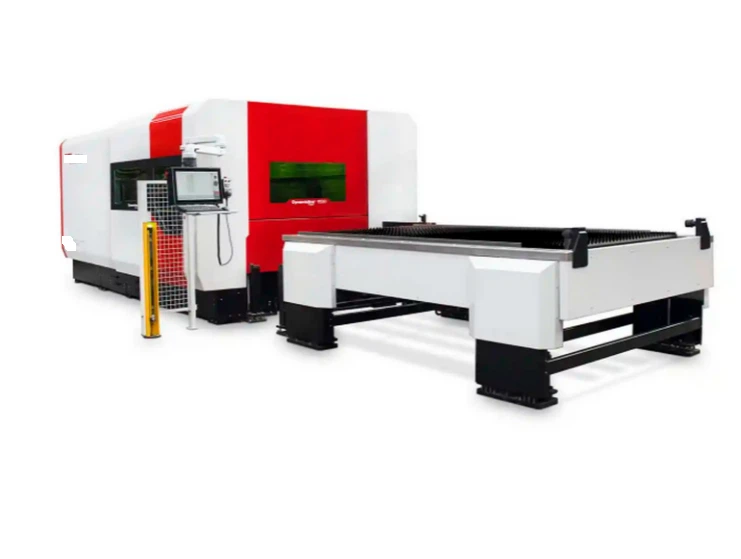
Before we dive into the connection process, it's important to know that there are different types of cutting machines out there. We've got the Metal Cutting Machine, which is great for cutting through all sorts of metals. Then there's the Fully Automatic Cutting Machine, which can do a lot of the work on its own once it's set up. And the Planar Laser Cutting Machine uses laser technology for really precise cuts on flat surfaces.
Prerequisites
Okay, so before you start connecting your cutting machine to the computer, there are a few things you'll need. First, make sure your cutting machine is compatible with your computer's operating system. Most modern machines work well with Windows, Mac, and Linux, but it's always a good idea to check the user manual. You'll also need the right cables. The most common ones are USB cables, Ethernet cables, or serial cables, depending on the machine. And don't forget to have the software that came with your cutting machine installed on your computer. This software is what allows your computer to communicate with the machine.
Step - by - Step Connection Process
Step 1: Prepare the Machine
First, turn off your cutting machine and your computer. This might seem obvious, but it's an important safety step. Then, find the appropriate port on your cutting machine. This is where you'll plug in the cable that connects to your computer. If it's a USB port, it'll look like the ones on your computer. If it's an Ethernet port, it'll be a bit bigger and has a clip on it.
Step 2: Connect the Cable
Take your cable and plug one end into the port on the cutting machine. Make sure it's a snug fit. Then, plug the other end into the corresponding port on your computer. If you're using a USB cable, it should fit right into a USB port on your computer. If it's an Ethernet cable, you'll need to plug it into your computer's Ethernet port.
Step 3: Power On
Now, turn on your cutting machine first. Let it boot up and get ready. Then, turn on your computer. As your computer starts up, it should detect the new device. If it's a Windows computer, you might see a little pop - up saying that it's installing drivers. Drivers are like little helpers that allow your computer to understand and communicate with the cutting machine.
Step 4: Install the Software
If you haven't already, install the software that came with your cutting machine. This software usually comes on a CD or can be downloaded from the manufacturer's website. Follow the installation instructions carefully. Once the software is installed, open it.
Step 5: Configure the Settings
In the software, you'll need to configure some settings to make sure your computer and cutting machine are talking to each other properly. Look for options like "Device Settings" or "Connection Settings". Here, you'll need to select the type of connection you're using (USB, Ethernet, etc.) and the specific device (your cutting machine). You might also need to set things like the cutting speed, the power level, and the type of material you're cutting.
Step 6: Test the Connection
Once you've configured the settings, it's time to test the connection. Create a simple test pattern in the software. It could be a straight line or a small circle. Then, send the pattern to the cutting machine. If everything is working correctly, the cutting machine should start cutting the pattern. If it doesn't, don't panic. Double - check your cable connections, make sure the software settings are correct, and try again.
Troubleshooting
Sometimes, things don't go as smoothly as we'd like. Here are some common problems and how to fix them:
Problem 1: The Computer Doesn't Detect the Machine
If your computer doesn't detect the cutting machine, first check the cable connections. Make sure the cable is plugged in all the way on both ends. You can also try using a different cable. If that doesn't work, try restarting both the computer and the cutting machine. Sometimes, a simple restart can fix the problem.

Problem 2: The Software Can't Communicate with the Machine
If the software can't communicate with the machine, make sure you've installed the correct drivers. You can usually find the latest drivers on the manufacturer's website. Also, check the software settings to make sure you've selected the right connection type and device.
Problem 3: The Cutting Machine Isn't Cutting Correctly
If the cutting machine isn't cutting correctly, check the settings in the software. Make sure the cutting speed, power level, and material type are set correctly. You might also need to calibrate the machine. This usually involves following a few steps in the software to make sure the machine is cutting accurately.
Conclusion
Connecting a cutting machine to a computer might seem like a daunting task at first, but if you follow these steps, it's actually not that hard. Once you've got the connection up and running, you'll be able to create amazing projects with ease.
If you're in the market for a cutting machine or have any questions about the connection process, don't hesitate to reach out. We're here to help you make the most of your cutting machine. Whether you're a small business owner looking to expand your production capabilities or a hobbyist wanting to take your projects to the next level, we've got the right cutting machine for you. Contact us to start a procurement discussion and find the perfect cutting machine for your needs.
References
- User manuals of various cutting machines
- Online resources from cutting machine manufacturers


